How to Use the Brat Font in Canva (Step-by-Step)
Want that brat album-cover look without Photoshop? Canva — the free design tool you probably already use — can get you surprisingly close in just a few minutes. This guide walks you through every step: the exact green, the right font, the blurry text effect, and a few shortcuts to speed things up. Open a blank canvas on BratGeneratorNow.com

Can You Get the Brat Font in Canva?
Short answer: yes, with one small catch. The brat cover uses Arial Narrow, a condensed sans-serif that ships with most computers — and it’s also in Canva’s font list. If you want the full backstory, here’s a breakdown of what font is brat and why Arial Narrow is the match.
The catch is the blur. Canva has no text-blur slider, so the slightly out-of-focus look of the original needs a workaround — we’ll get to that in Step 3.
Font rendering also differs a little between Canva and print, so don’t expect a pixel-perfect replica. For social posts, thumbnails, and memes, it’s more than close enough.
If Arial Narrow doesn’t appear in your font list for some reason, you can upload the font file yourself on a paid Canva plan (more on that in the FAQs). It helps to have the file handy, so grab a brat font free download first.
One thing to know: the free version of Canva is all you need for this tutorial. Every step here — the color picker hex field, Arial Narrow, the Shadow effect — is available without paying. Canva Pro adds brand kits and a background remover, but neither is required for the brat look.
Step 1: Set Up the Green Background
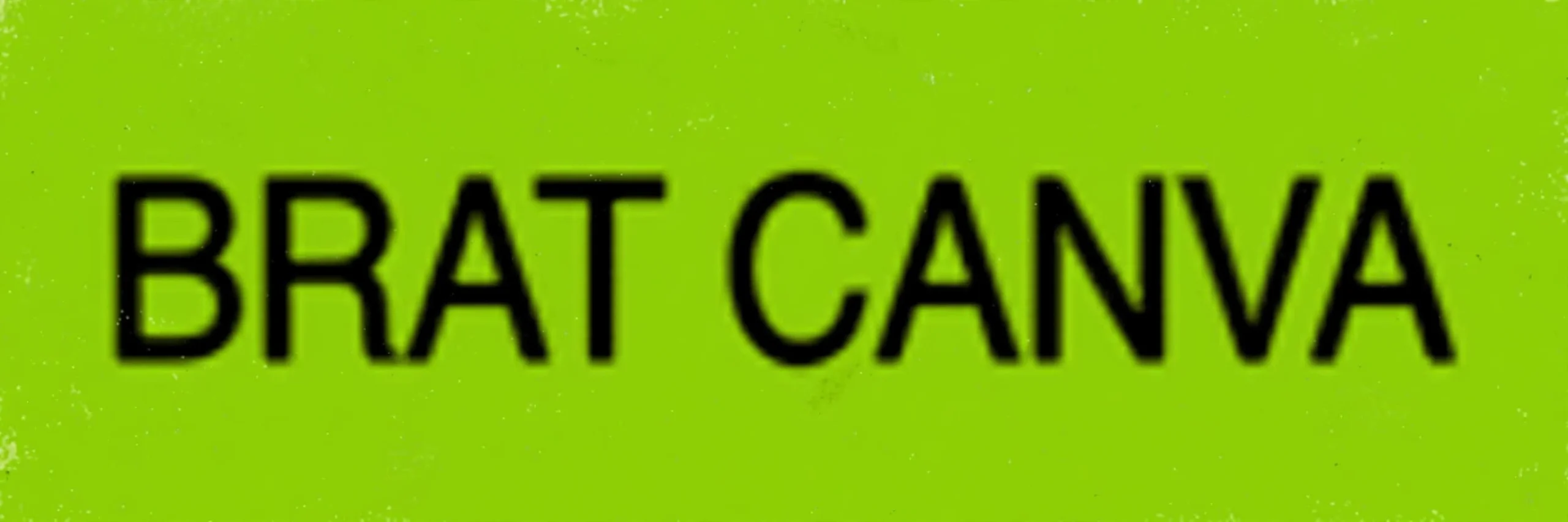
The brat green is iconic — a loud, acidic lime — and the exact hex is #8ACE00, so there’s no need to eyeball it. Start a new design in Canva (an Instagram Post or a Custom Size both work well) and click the background. Open the color picker and paste #8ACE00 into the hex field. Your whole canvas should now be that unmistakable brat green.
Want the text-only version instead of a full green square? You can skip the background and add a green shape behind your text later — or design on green and export with a transparent background for layering over photos. Keep it simple for now: the full green background is the classic look, so start there.
Step 2: Add Text
Click Text in the left panel and add a heading. Type your word or phrase in lowercase — the brat aesthetic is always lowercase, usually one to three words. Center the text box on the canvas and stretch it wide.
Keep the font size big. The text should nearly touch the edges of the design, just like the album cover — don’t be shy with the size slider. If your phrase is long, split it across two lines and tighten the line spacing so it reads as one solid block.
If you’re making a square post, a single centered line usually fills the frame best. For wider banners, let the text run edge to edge and reduce the font size just enough to keep everything on one line.

Step 3: Match the Font & Effect
Select your text and change the font to Arial Narrow (type it into the font search to find it fast). Set the color to a very dark green-black rather than pure black — something like a deep olive tone gets you closest to the original.
Now the blur. Since Canva has no blur slider for text, use the Shadow effect as a stand-in: with your text selected, open Effects, choose Shadow, then drag the offset to zero and push the blur and transparency up. The soft dark halo melts the hard edges and reads as blur at a glance.
For a stronger effect, duplicate the trick: copy the text layer, keep the shadow on the bottom copy, and leave the top copy sharp — the mix looks convincingly out of focus. Or skip the manual work entirely and drop in a ready-made transparent PNG of brat-style text as an image layer instead.
One more detail: bump up the letter spacing slightly and scale the text a touch wider than tall. Arial Narrow is already condensed, so a slight horizontal stretch gets the proportions closer to the cover.
Templates & Shortcuts
Once you’ve built the look, save yourself repeat work. Duplicate the design for each new post (File, then Make a copy) so you always start from your finished brat layout — just swap the words and export.
A few shortcuts that help: press T to add a text box instantly, Ctrl/Cmd + D to duplicate any element (handy for the shadow-blur trick), and lock the background with the lock icon so you don’t nudge it by accident. The paint-roller Copy style tool is great for matching text formatting across designs.
Another time-saver: keep a folder in Canva for your brat graphics and store every version there. When a trend pops up, you’ll have the base design ready to remix in seconds instead of starting from scratch.
That’s the whole process: a #8ACE00 background, Arial Narrow text in lowercase, a dark olive text color, and a faked blur with the Shadow effect. It takes about five minutes the first time and under a minute once you’ve saved a template. Have fun with it.
Is the brat font available in Canva?
Yes. Arial Narrow — the font used on the brat cover — is in Canva’s built-in font list, even on the free plan. Just type it into the font picker’s search box. You don’t need Canva Pro or an upload to use it.
How do I get the green background?
The official brat green is #8ACE00. In Canva, click the background, open the color picker, and paste that hex code into the hex field. Your canvas will instantly match the album cover’s iconic lime color.
Can I upload Arial Narrow to Canva?
Yes, on Canva Pro, Canva Teams, or Canva Education. Go to Brand Kit, then Brand Fonts, and upload the TTF file. On the free plan, font uploads aren’t available — but Arial Narrow is already in Canva’s library, so there’s no need.
Is there a brat template?
Canva doesn’t include an official brat template, but you can build your own in minutes: a #8ACE00 background, lowercase Arial Narrow text, dark text color, and the Shadow effect for the blur. Save the design and duplicate it for every new graphic.