
Brat Video Text Generator: Add Brat Text to Videos
Adding text to a video sounds easy until you try to make it look good. Most text overlays look either boring or overdesigned — but brat text hits a sweet spot. It’s raw, readable, and instantly recognizable from Charli XCX’s lime-green album era.
A brat video text generator gives you that look in seconds, and from there it’s just a matter of dropping it onto your clips. This guide shows you why brat text works on video, two free methods to add it, how to animate it, and the export settings that keep it crisp on TikTok and Reels. Upload your clip and finish it on our homepage

Why Brat Text Works on Video
Phone screens are small and attention spans are short. Brat text is built for exactly that: huge, high-contrast, impossible to miss. The black-on-green combo reads instantly even on a dim screen, and the lo-fi look feels native to TikTok instead of like an ad.
There’s also a cultural shortcut. The moment viewers see that blurry Arial on green, they know the tone: funny, self-aware, a little chaotic.
You don’t have to explain the joke — the style does it for you. That’s why it outperforms clean, “professional” captions for memes and reaction clips.
Method 1: CapCut
CapCut is the best free option, and the whole thing takes about five minutes. Start a new 9:16 project and import your clip. Generate your text with a brat text tool, save it as a transparent PNG, then import the image into CapCut and place it on a track above your video.
Pinch to scale the text up and drag it into place — center works for most videos. Trim the image’s duration to match the moment it should appear.
For multiple lines, add one image per line and stagger them along the timeline. This CapCut tutorial covers the app’s text tools in more depth if you need it.
CapCut’s free version includes everything here: unlimited layers, keyframe animation, and 1080p export with no watermark. If you’re making lyric-style videos specifically, the brat lyrics generator guide pairs well with this method.
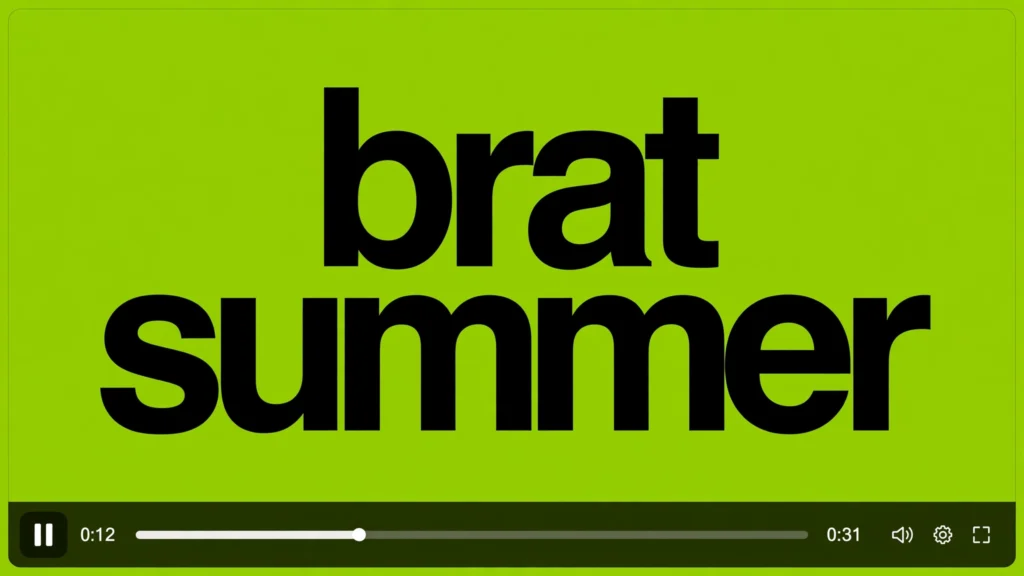
Method 2: Online Video Editors
Prefer a computer? Online editors like Kapwing, VEED, or Canva’s video editor handle text overlays with nothing to install. Upload your clip, generate your brat text, and add the PNG as an image layer. The workflow is identical: position, scale, trim, export.
The advantage is precision — a mouse makes it easier to align text and manage lots of layers. The catch is that free plans often add watermarks or cap export quality, so check before committing to a big project.
Animating the Text
Static text works, but a little motion makes it feel alive. The simplest move is a fade-in: bring opacity from 0 to 100 over a few frames so the text pops in on the beat. A quick scale-up from 90% to 100% gives a punchy “slam” effect that suits the chaotic brat energy.
In CapCut, select the image, tap Animation, and try the In presets — “Fade In” is a good starting point. Keep animations short, under half a second. The brat look is intentionally raw, so slick effects and long transitions work against the style.
Export Settings for TikTok & Reels
Export at 1080×1920, 30fps, as MP4 (H.264) — exactly what TikTok and Reels expect, and it keeps text sharp. Higher frame rates just inflate file size without any visible benefit for text overlays.
Watch the exported file once before posting. Make sure the text is readable at phone size and that nothing important sits under TikTok’s interface buttons — keep text clear of the right edge and bottom third. The same care applies when you add brat text to a photo.
Brat text on video is one of those rare tricks that’s both easy and effective. Generate the text, overlay it, time it, export in 9:16 — that’s the whole process.
You can go from idea to posted video in under half an hour. One last thing: consistency beats perfection.
Your first brat text video won’t be flawless, and that’s fine — the style itself is gloriously unpolished. Post it, see what lands, and reuse what works. Save your favorite text sizes and animation presets so the next video takes minutes instead of hours.
How do I add brat text to a video?
Generate the text with a brat text tool, save it as a transparent PNG, and overlay it on your video in CapCut or any editor. Position it centrally, trim its duration to match your clip, and export in vertical 9:16.
Can I animate brat text?
Yes. Most editors offer fade-ins, pop-ups, or scale animations for image and text layers. Keep animations short and subtle — the brat look is intentionally raw, so heavy effects work against the style.
What export settings should I use?
Export 1080×1920 at 30fps as MP4 (H.264) for TikTok and Reels. Check that the text is sharp and readable at phone size before posting.
Is CapCut free for this?
Yes. Text overlays, image layers, keyframe animation, and 1080p export are all in CapCut’s free version, with no watermark.


